Billing
The billing module allows you to create, send and manage invoices for your clients.
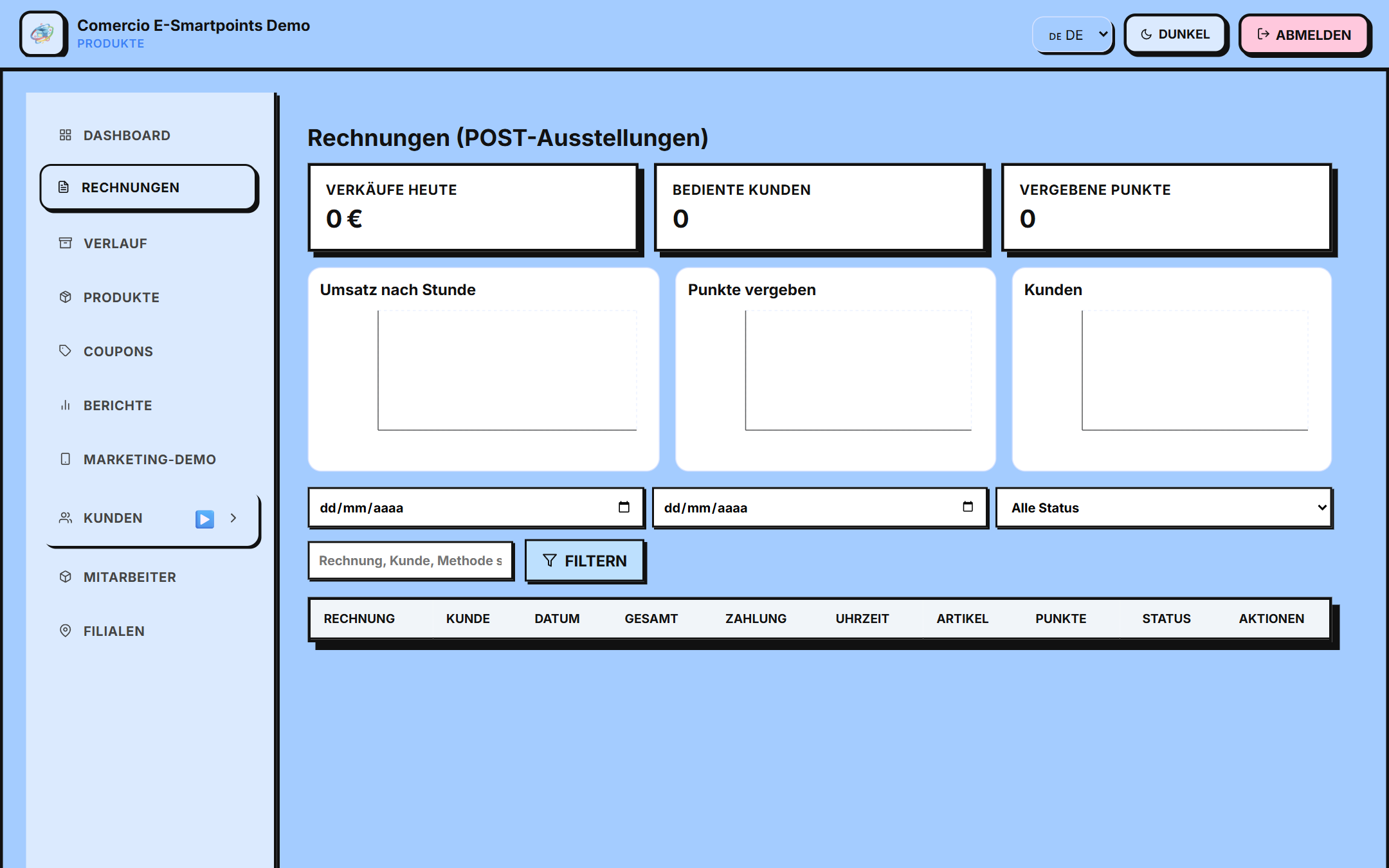
Access
- Invoices of the day (POS):
/app/rechnungen - Full history:
/app/invoice-history
Invoice View (Rechnungen)
The main screen shows two graphs:
- 📈 Sales: total invoiced on the day
- ⭐ Punkte vergeben: points awarded to customers
And a list of invoices of the day with:
- 🔍 Search by number or client
- 📅 Date filters
- 👁 See details of each invoice
- ⬇️ Download PDF
Complete history
The history view allows you to see all invoices for all time.
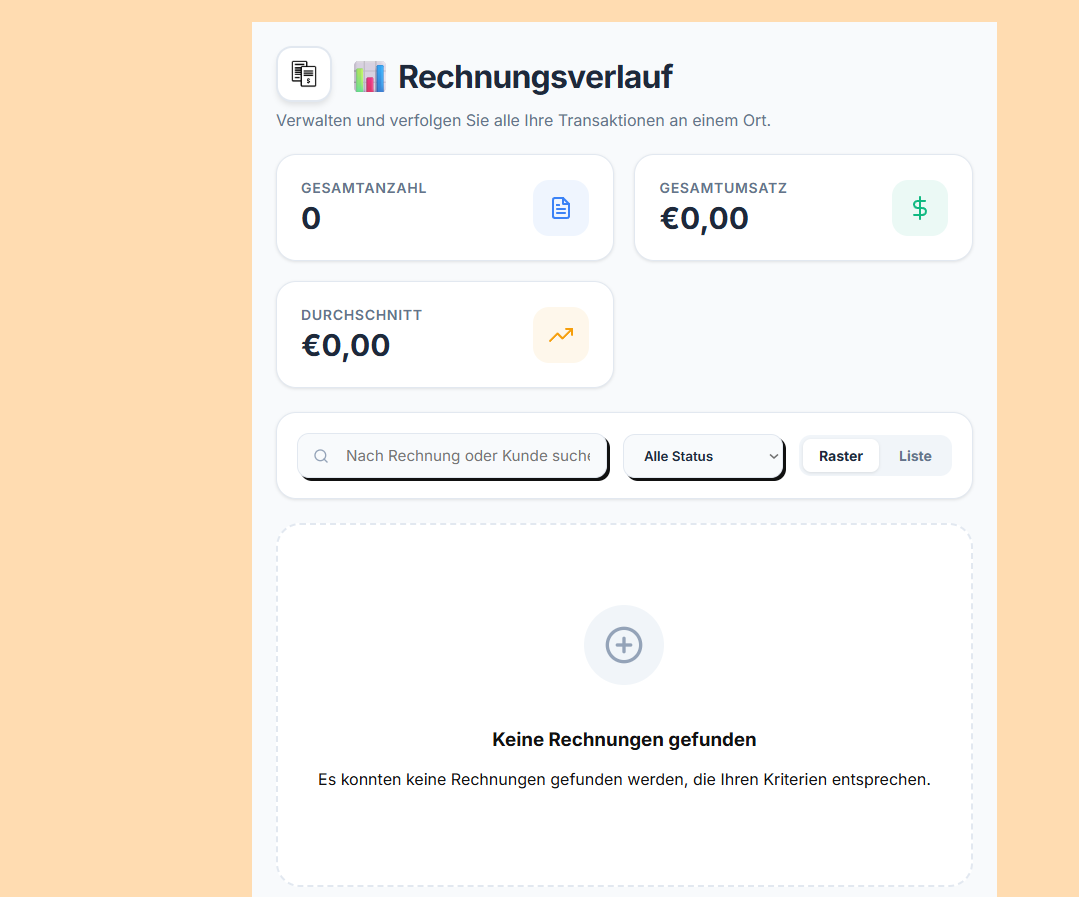
Filters available
- 🔍 Search by number or client
- 📊 Status (Paid/Pending)
- 🏪 Trade specific
- 📅 Date range
Actions
- 👁 View invoice detail
- ⬇️ Download PDF
- 📧 Resend by email
Create an invoice (from POS)
Invoices are created automatically from the POS module upon completion of a sale. See POS → for more details.
Create a manual invoice
- Go to Rechnungen → "Neue Rechnung"
- Select the client (or create a new one)
- Add the products/services: - Click on "+" to add - Select product and quantity - The price is calculated automatically
- Apply discounts or coupons if applicable
- Select the payment method
- Click on "Generate" to create the invoice
Invoice detail
When you click on an invoice you will see:
- 📋 Customer data (name, email, address)
- 📅 Date of issue
- 🛒 Items with quantity and unit price
- 💰 Subtotal, VAT, Total
- 💳 Payment Method
- 📜 Notes (optional)
Numbering
Invoices follow automatic numbering:
- Format:
R-1001,R-1002, etc. - Sequential per trade
- Unique (not repeated)
- You can see the next number in settings
Payment methods
E-Smartpoints supports:
- 💵 Cash (Bar)
- 💳 Card (Karte)
- 📱 QR (customer points redemption)
Export
You can export all your invoices:
- Go to History
- Apply the desired filters
- Click "Export"
- Select the format: - 📄 PDF (individual preview) - 📊 Excel/CSV (for accounting) - 📦 ZIP with all PDFs
Tax compliance
E-Smartpoints invoices comply with:
- ✅ Sequential numbering
- ✅ Sender and receiver data
- ✅ VAT breakdown
- ✅ Date and time
- ✅ Payment method
- ✅ Tax identification (NIT/RFC)
Next steps
- Learn how to use POS → to create invoices