Point of Sale (POS)
The POS module (Point of Sale) is your sales terminal for recording sales at the customer service point.
Access
/app/pos
Main view
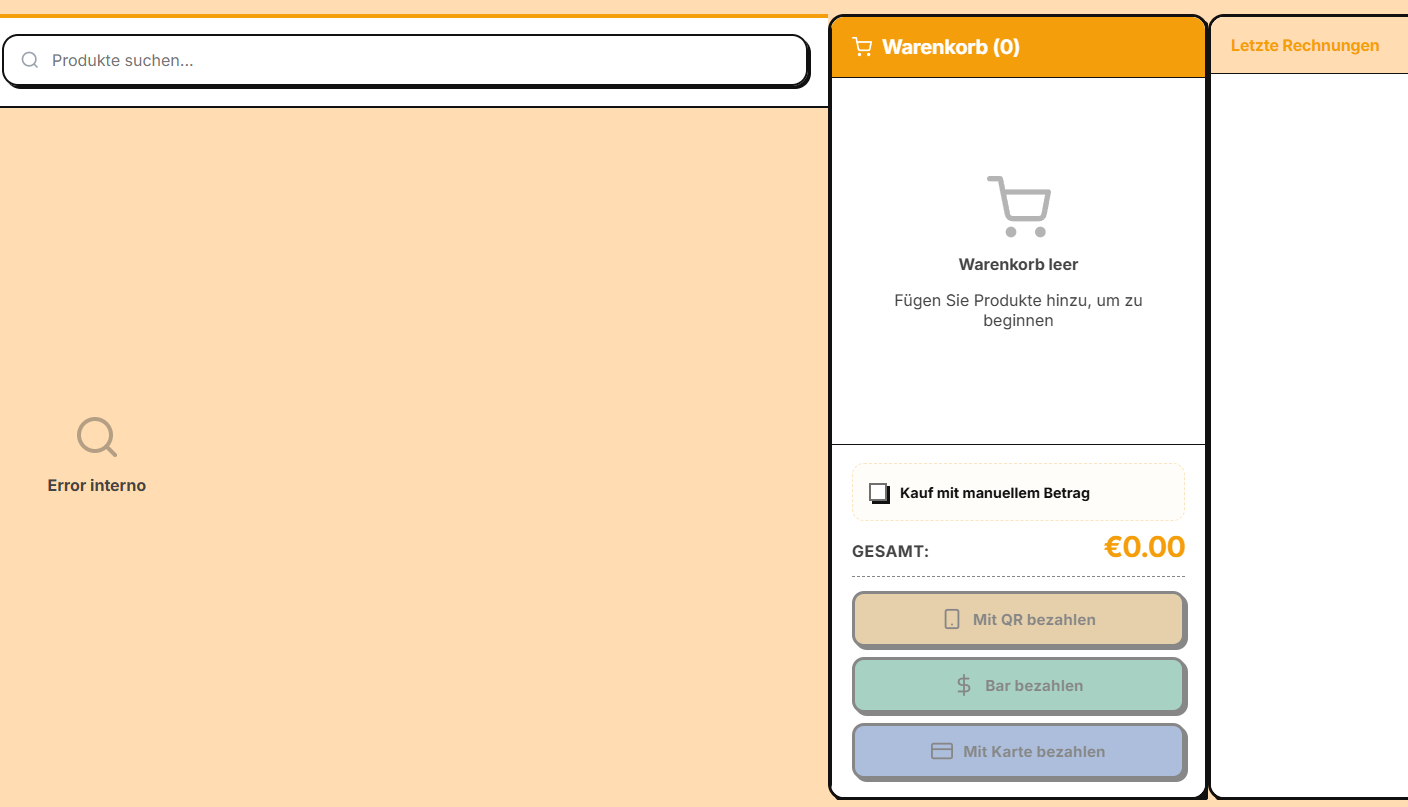
The POS screen has 3 main areas:
🛍️ Product catalogue (left)
- 🔍 Search by name
- 🏷️ Category filters (Starters, Main courses, Desserts, Drinks)
- 🖼️ Product cards with image and price
- Click a card to add the product to the cart
🛒 Cart (right)
- 📋 List of added products
- 🔢 Editable quantity
- 💰 Automatically calculated subtotal
- 🧾 Itemised VAT
- 💵 Total to pay
- 👤 Assigned customer (optional but recommended for points)
🎬 Cart actions
- ➕ Add product
- ➖ Reduce quantity
- 🗑️ Remove product from the cart
- 🧹 Empty cart
- 💳 Process payment (main button)
- 🔍 Scan the customer's QR code (to redeem points)
Processing a sale
Step 1: Add products
You have 3 options:
- Click directly on a product card in the catalogue
- Search by name
- Scan a barcode with the camera (coming soon)
Step 2: Identify the customer (optional)
For the customer to collect points:
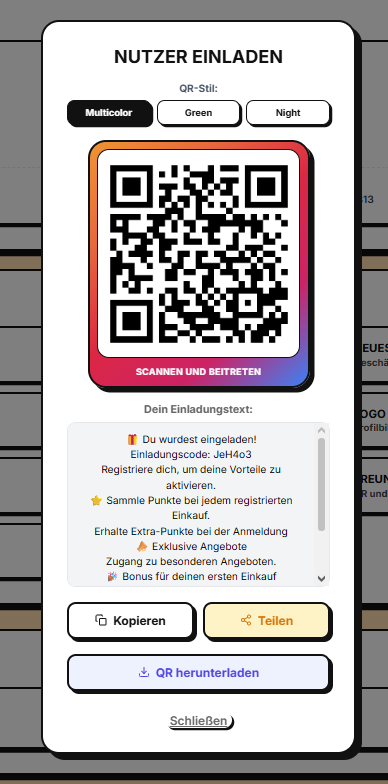
- Click “Scan QR” in the cart
- The camera opens
- The customer shows their QR code
- The customer is identified and assigned to the cart
Alternatives:
- 📧 Search by email
- 📱 Search by phone number
- 🆕 Register a new customer immediately
Step 3: Apply coupons (optional)
- Click “Coupon” in the cart
- Enter or scan the code
- The discount is applied automatically
Step 4: Process the payment
- Click “Register purchase” (large green button)
- Select the payment method:
- 💵 Cash
- 💳 Card
- 📱 QR (to redeem the customer's points)
- Confirm the amount
- Click “Confirm”
Step 5: Generate the invoice
- 📄 The invoice is generated automatically
- 📧 It is sent to the customer's email, if provided
- 🧾 The receipt is printed, if a printer is available
- ⭐ Points are assigned to the customer
Payment methods
E-Smartpoints POS supports:
| Method | Description |
|---|---|
| 💵 Cash | Payment at the register; change is calculated |
| 💳 Card | Integration with the card terminal |
| 📱 QR | Scan the customer's QR code to redeem accumulated points |
The QR code in the POS is only used to redeem points. It is not used to add products to the cart or as a direct payment method. Customers earn points through purchases and can redeem them using their QR code.
Refunds
To refund a sale:
- Go to Invoices and find the invoice
- Click “Refund”
- Select the items to return
- Confirm the refund method
- A credit note is generated
Offline mode
The POS works even without an internet connection:
- 💾 Sales are stored locally
- 🔄 They are synchronised automatically when the connection returns
- ⚠️ An “offline mode” indicator is displayed
Printing
If a thermal printer is configured:
- 🖨️ The receipt is printed automatically
- 📄 Configurable format (58 mm, 80 mm)
- 🌐 Multiple protocols are supported (ESC/POS, etc.)
Next steps
- Learn how to create sales reports →
- Learn about marketing campaigns →